Overview
The Documents module allows you to upload PDF files, organize them into folders, and require staff to read and sign them. You can also attach quizzes to test comprehension.
Step 1: Navigate to Documents
Click Documents in the left navigation menu. You will see the Document Library with existing folders and files.
Step 2: Create a Folder (Optional)
Click Add Folder to create a new category (e.g., Employee Handbook, Safety Training). Select the folder you want to add documents to from the dropdown.
Step 3: Upload a Document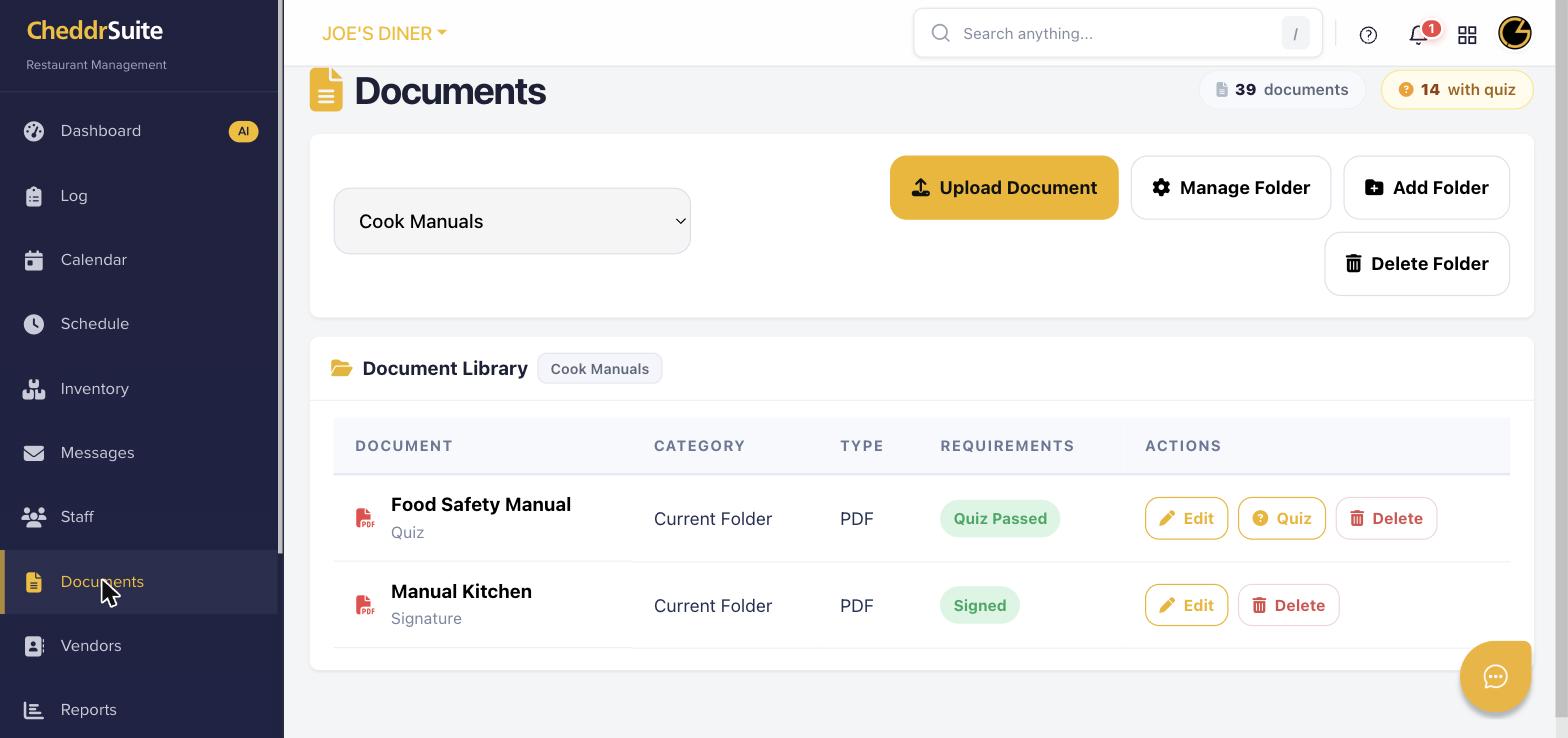
Click Upload Document, then select a PDF file from your computer. Give the document a name, choose its category (Current Folder or All Employees), and set the type to Signature if you need staff to sign it.
Step 4: Assign the Document to Staff
After uploading, the document will automatically be visible to all staff based on its category setting. Staff will be prompted to read and sign it the next time they log in.
Step 5: Track Completion
Return to the Documents page to see the signature and quiz status next to each file. Staff with outstanding documents will show incomplete status on their profile.
Was this article helpful?
That’s Great!
Thank you for your feedback
Sorry! We couldn't be helpful
Thank you for your feedback
Feedback sent
We appreciate your effort and will try to fix the article