Overview
The Staff module is your central hub for managing all employee records, contact information, positions, and access levels. Adding staff correctly ensures they appear in scheduling, timeclock, and messaging features.
Step 1: Navigate to St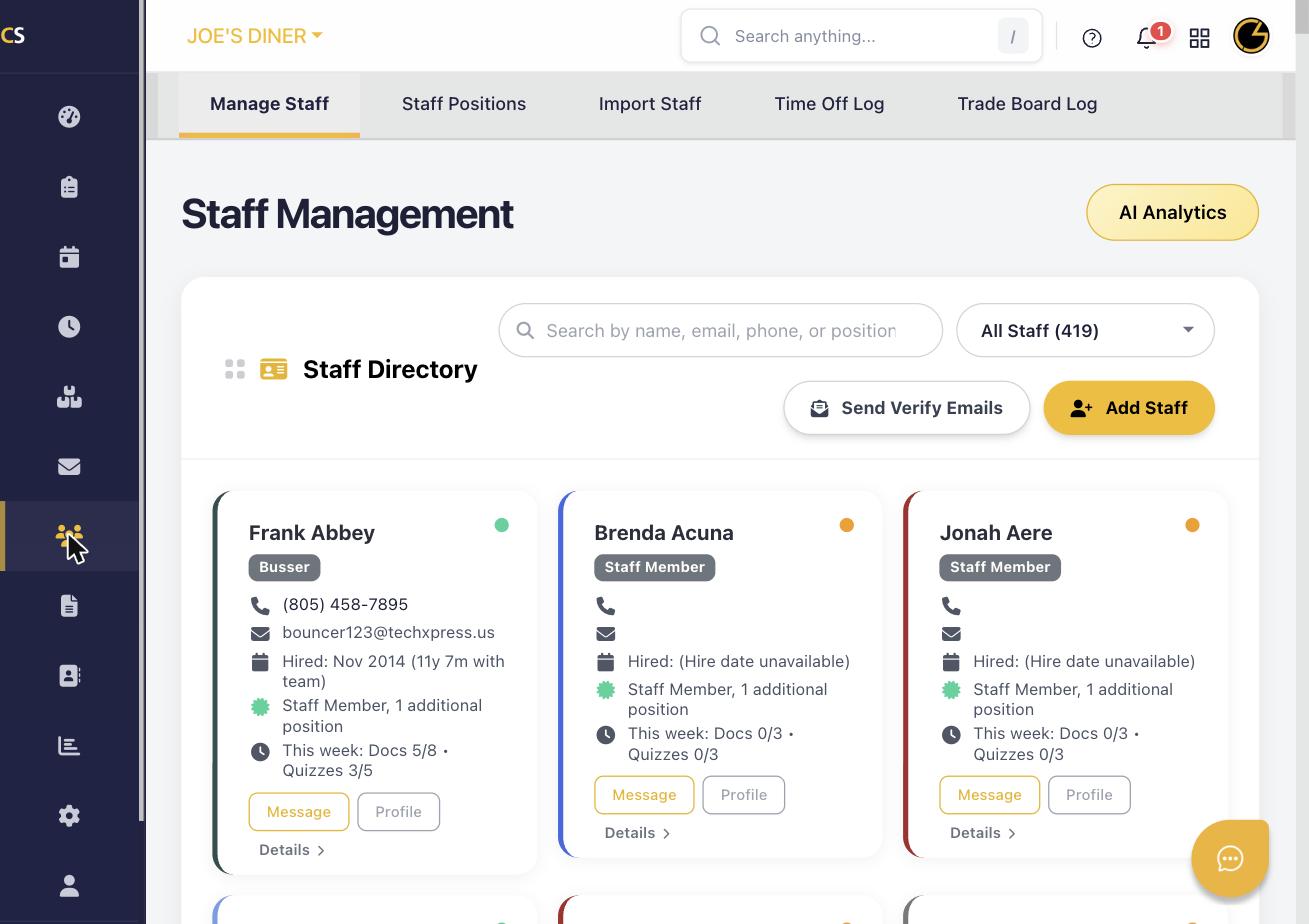 aff Management
Click the Staff icon (people icon) in the left sidebar. This opens the Staff Management page showing your Staff Directory.
Step 2: Add a New Staff Member
Click the + Add Staff button. Enter the employee’s first and last name, email address, phone number, and hire date. An invitation email will be sent to the employee to set up their account.
Step 3: Assign Positions
After adding the staff member, assign one or more positions (e.g., Server, Bartender, Manager). Positions determine which roles appear in the schedule and what permissions the employee has.
Step 4: Set Access Level
Choose the employee’s access level: Staff (basic access), Manager (can manage schedules and logs), or Admin (full access). This controls what they can see and do in CheddrSuite.
Step 5: Review Staff Profile
Click Profile on any staff card to view or edit their complete profile, including contact info, positions, documents, quiz completions, and timecard history.
Step 6: Manage Existing Staff
Use the search bar or filters to find specific employees. Click Message to send a direct message, or use the filter dropdown to view staff by position or employment status.
Was this article helpful?
That’s Great!
Thank you for your feedback
Sorry! We couldn't be helpful
Thank you for your feedback
Feedback sent
We appreciate your effort and will try to fix the article