Overview
Staff Positions define roles within your restaurant, and Permissions control what each staff member can see and do in CheddrSuite. Setting these up correctly ensures your team has the right access.
Step 1: Navigate to Staff Positions
From the top navigation, click Manage Staff, then select the Staff Positions tab to view all existing positions.
Step 2: Add a New Position
Click the Add Position button. Enter a position name (e.g., Server, Cook, Manager), set the pay type, and assign a default hourly rate.
Step 3: Set Permissions for the Positi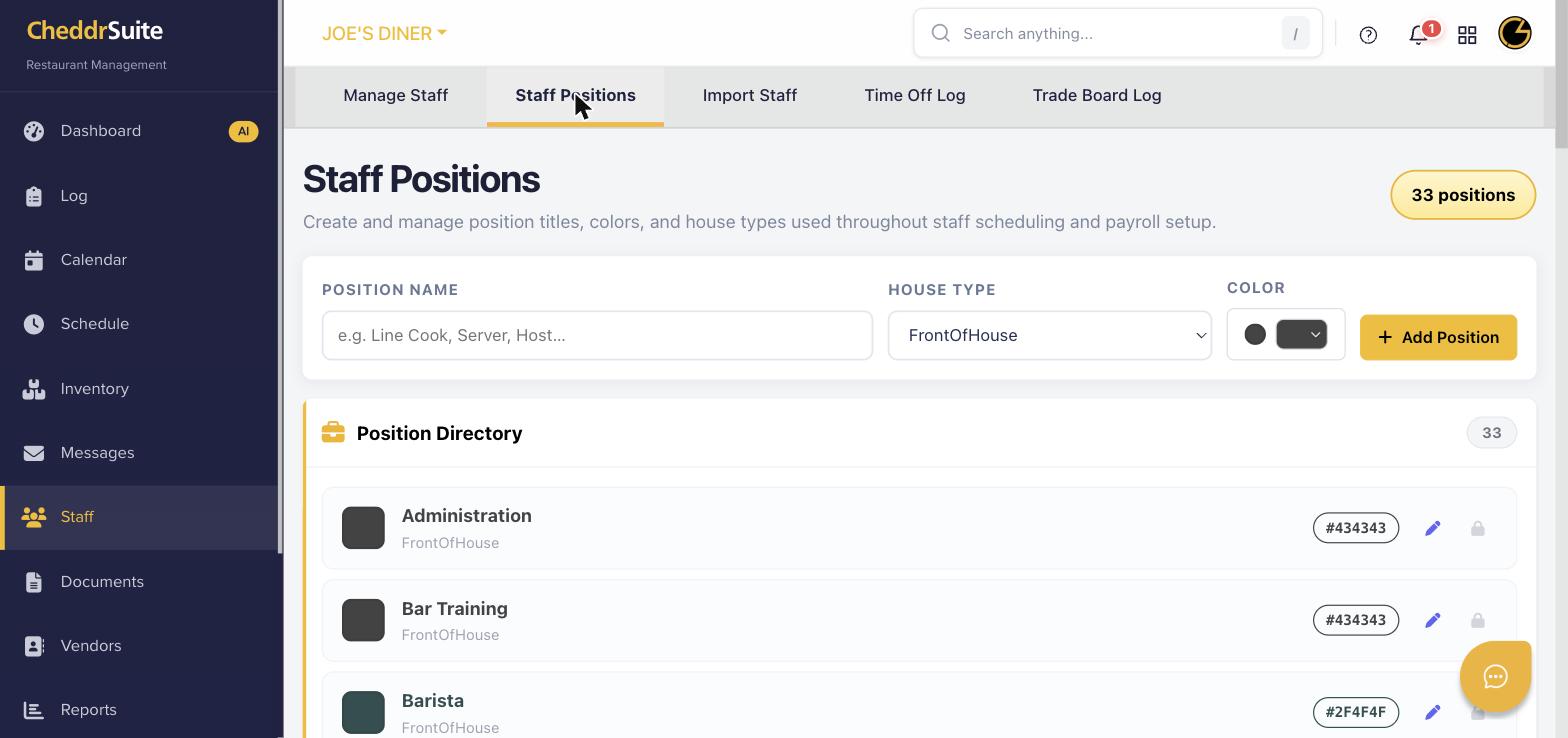 on
on
Click the Permissions icon next to a position. Toggle on or off access to modules like Scheduling, Timeclock, Inventory, Reports, and Settings based on the role's needs.
Step 4: Assign Positions to Staff Members
Go to the Staff Directory tab, click on a staff member's name, and assign them one or more positions from their profile. Their permissions will update automatically.
Step 5: Review and Save
Review all position settings and permissions, then click Save to apply changes. Staff members will see updated access the next time they log in.
Was this article helpful?
That’s Great!
Thank you for your feedback
Sorry! We couldn't be helpful
Thank you for your feedback
Feedback sent
We appreciate your effort and will try to fix the article