Overview
The Messages module in CheddrSuite lets managers send direct messages to individual staff members or broadcast announcements to the entire team. All messages appear in both the web app and the staff mobile app.
Step 1: Navigate to Messages
Click Messages in the left navigation menu. You will see your Inbox with incoming messages and pending time-off requests.
Step 2: Compose a New Message
Click the Compose tab at the top. Use the To field to search for and select one or more staff members to message.
Step 3: Write and Send Your Messag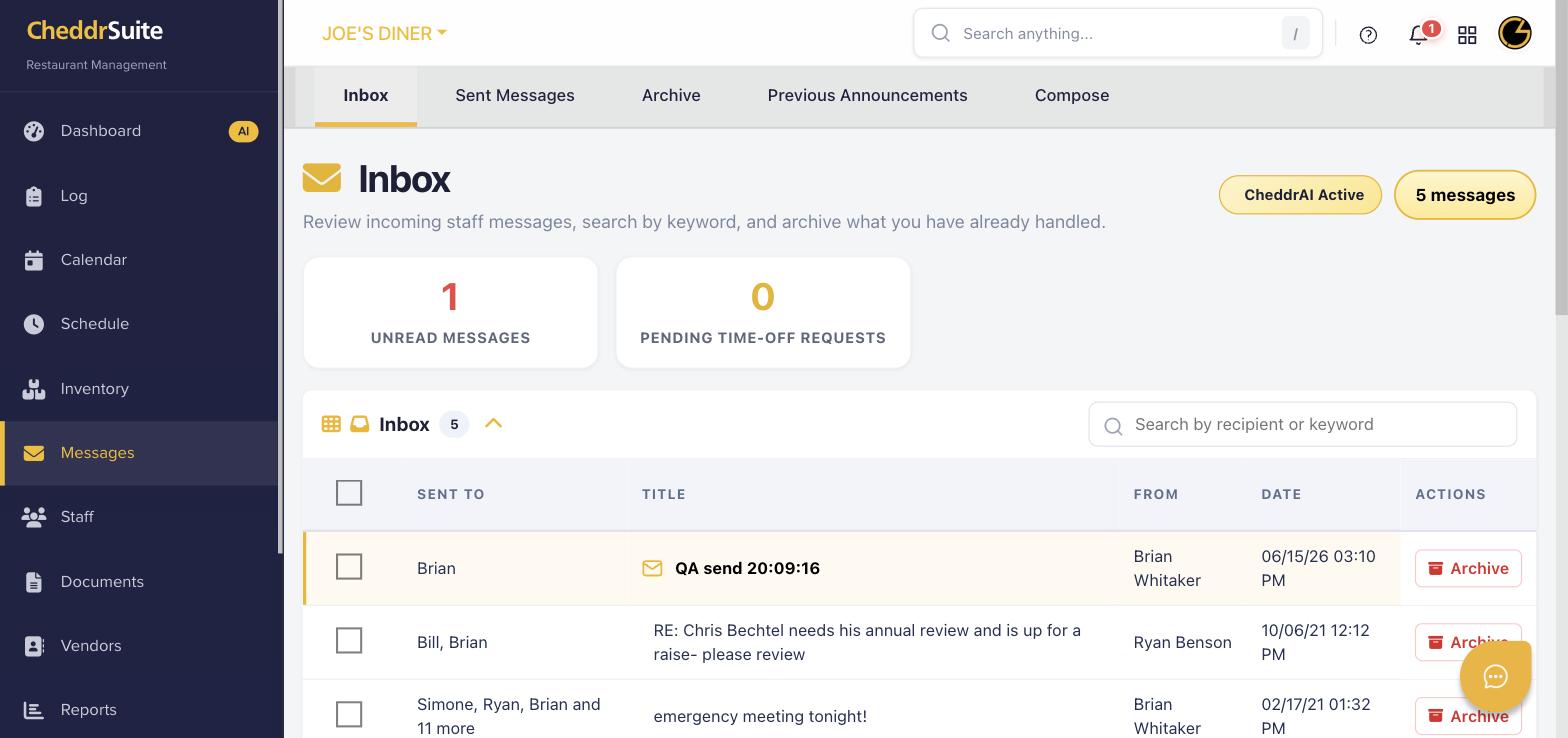 e
e
Enter a subject line and type your message in the body. Attach files if needed, then click Send to deliver the message instantly to the selected recipients.
Step 4: Send an Announcement to All Staff
To send a message to everyone, click Compose and select All Staff in the To field, or use the Previous Announcements tab to resend a prior broadcast.
Step 5: Review Sent Messages
Click the Sent Messages tab to view a history of all messages you have sent. Use the Archive tab to file away messages you have already handled.
Was this article helpful?
That’s Great!
Thank you for your feedback
Sorry! We couldn't be helpful
Thank you for your feedback
Feedback sent
We appreciate your effort and will try to fix the article