Overview
Cost Settings allow you to enter your restaurant's fixed costs, labor overhead, and financial targets. These inpu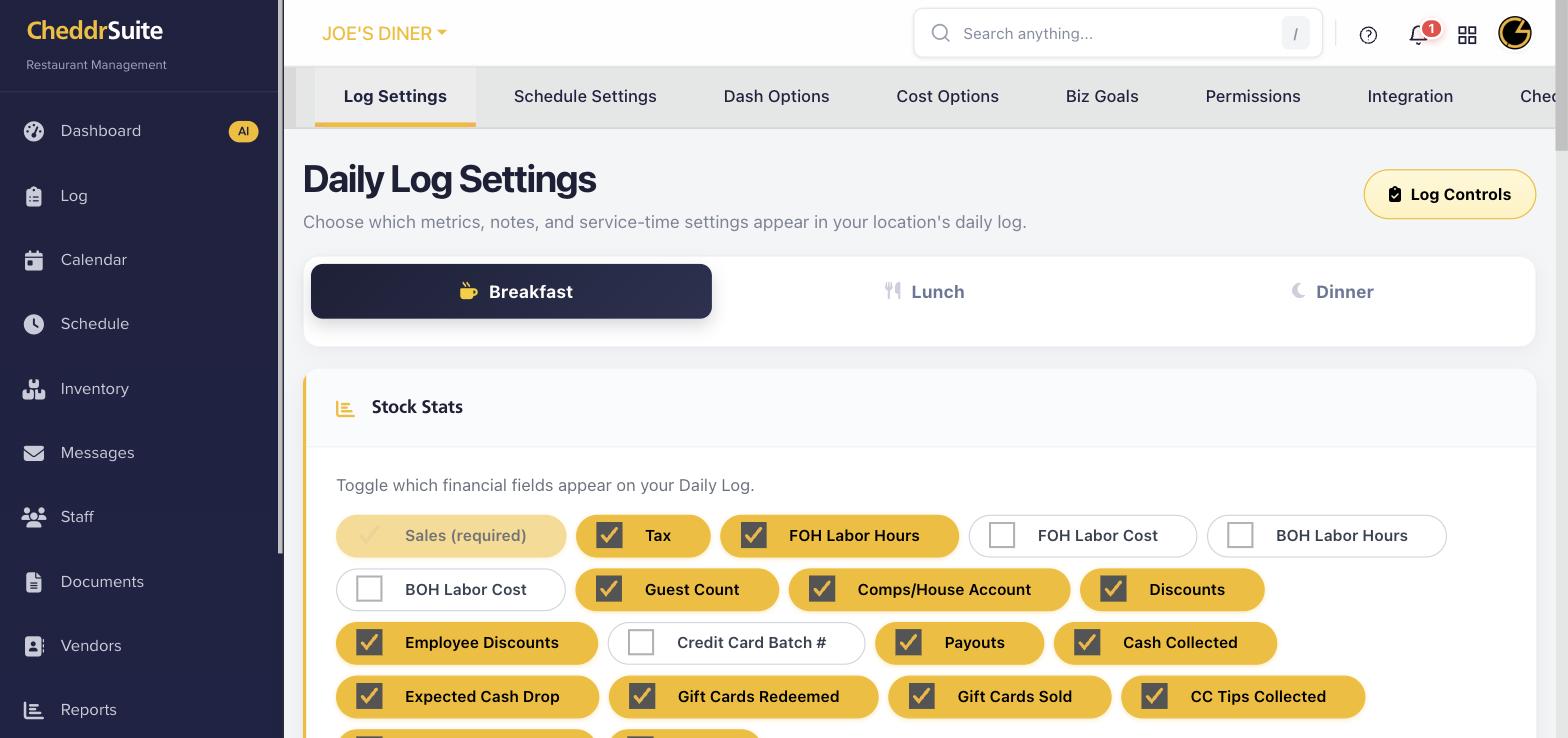 ts power the Profit/Loss reports and help CheddrAI provide accurate financial insights.
Step 1: Navigate to Cost Options
Click the Settings gear icon in the left navigation menu, then click the Cost Options tab at the top of the settings page.
Step 2: Enter Fixed Costs
Input your recurring monthly expenses such as rent, utilities, insurance, and loan payments in the Fixed Costs section. These are used to calculate your break-even point in reports.
Step 3: Set Labor Overhead
Enter your payroll overhead percentage (e.g., taxes, benefits, workers comp) as a percentage. This is added on top of wages when calculating true labor costs.
Step 4: Configure Business Goals
Click the Biz Goals tab to set weekly and monthly sales targets. CheddrAI uses these targets to evaluate your performance and generate briefings on the Dashboard.
Step 5: Save Your Settings
Cost settings are saved automatically when you enter values. Return to Reports and run a Profit/Loss report to verify your financial inputs are reflected correctly.
Was this article helpful?
That’s Great!
Thank you for your feedback
Sorry! We couldn't be helpful
Thank you for your feedback
Feedback sent
We appreciate your effort and will try to fix the article