Overview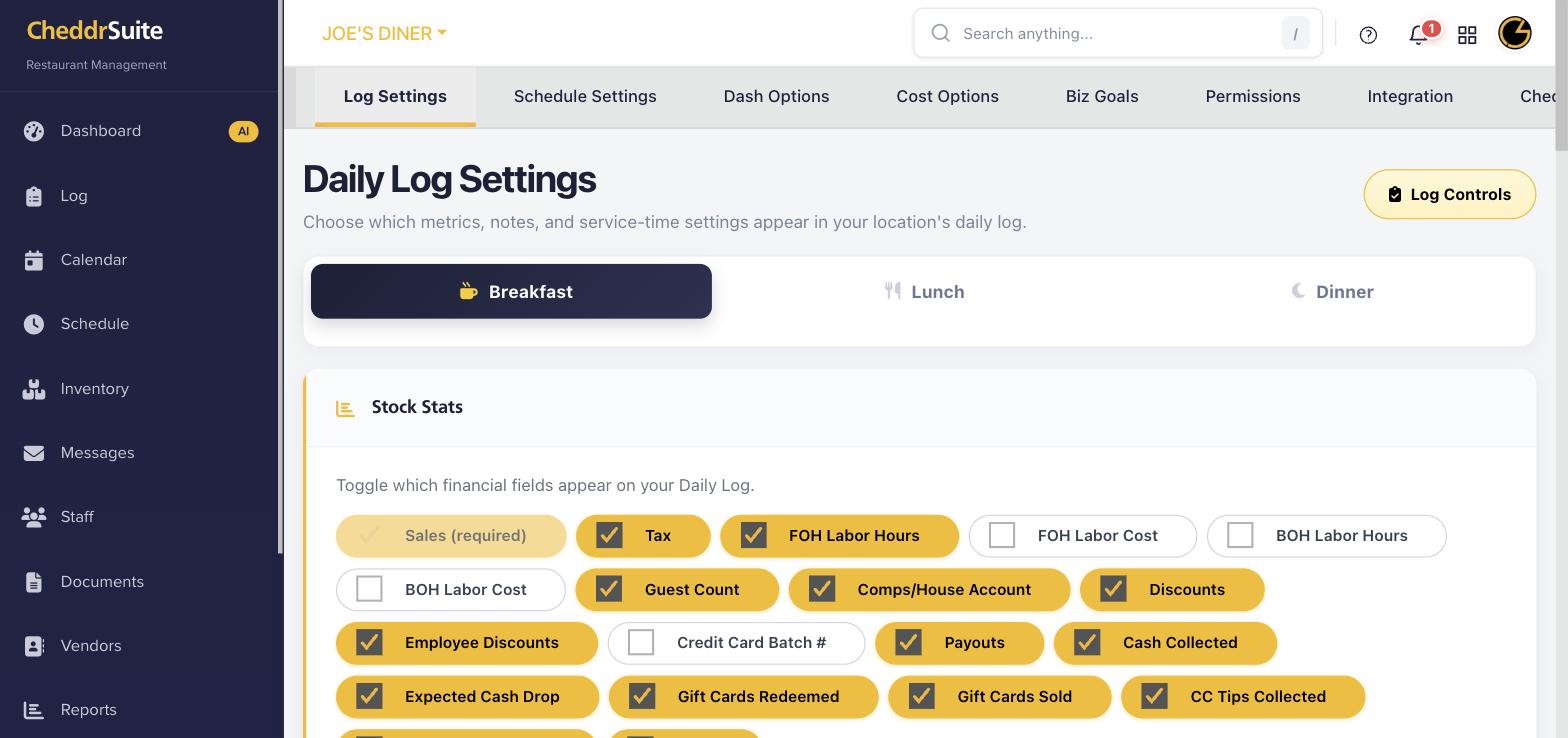
Daily Log Settings let you customize which financial metrics, notes sections, and service times appear in your Daily Manager Log. Tailoring these settings ensures your log captures the data most relevant to your operation.
Step 1: Navigate to Settings
Click the Settings gear icon in the left navigation menu. The page opens to Log Settings by default, which is the Daily Log configuration tab.
Step 2: Select a Service Time
Choose Breakfast, Lunch, or Dinner at the top to configure fields for each service period separately. Each service time can have different toggles enabled.
Step 3: Toggle Financial Fields
Under Stock Stats, toggle on the financial fields you want to track in your log, such as Sales, Tax, Guest Count, Labor Hours, Discounts, and Cash Collected. Fields shown in yellow are enabled.
Step 4: Configure Log Controls
Click Log Controls to set up additional log options, such as note categories, weather tracking, and manager signature requirements for each service period.
Step 5: Save Your Settings
Changes are saved automatically as you toggle each field. Return to the Log page to verify that your daily log now shows the correct fields for each service time.
Was this article helpful?
That’s Great!
Thank you for your feedback
Sorry! We couldn't be helpful
Thank you for your feedback
Feedback sent
We appreciate your effort and will try to fix the article