Overview
CheddrSuite integrates with popular POS systems like Square, Toast, Clover, and Aloha to automatically impor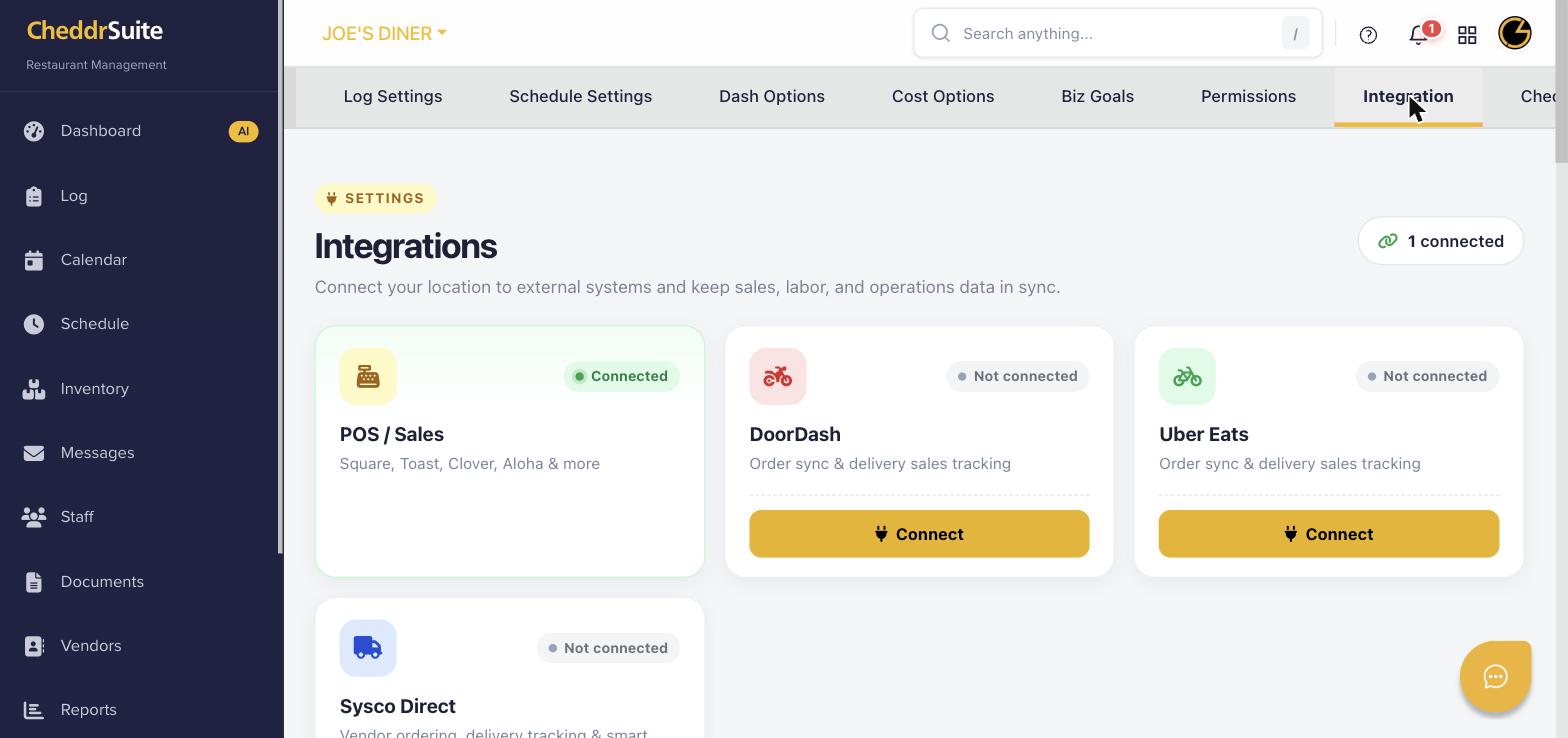 t daily sales data. Once connected, your sales figures flow directly into your Daily Log and Reports.
Step 1: Navigate to Integrations
Click the Settings gear icon in the left navigation menu, then click the Integration tab at the top of the settings page.
Step 2: Select Your POS System
Click on the POS / Sales card. You will see a list of supported POS systems including Square, Toast, Clover, Aloha, and others.
Step 3: Authorize the Connection
Click Connect next to your POS provider. You will be redirected to your POS system's login page to authorize CheddrSuite to access your sales data. Sign in and approve the connection.
Step 4: Map Your Locations
After authorization, map your POS location to your CheddrSuite location. Select the correct store or location from the dropdown and click Save.
Step 5: Verify Data Sync
Return to your Dashboard or Daily Log to confirm that sales data is syncing correctly. Sales figures from your POS will now appear automatically each day.
Was this article helpful?
That’s Great!
Thank you for your feedback
Sorry! We couldn't be helpful
Thank you for your feedback
Feedback sent
We appreciate your effort and will try to fix the article