Overview
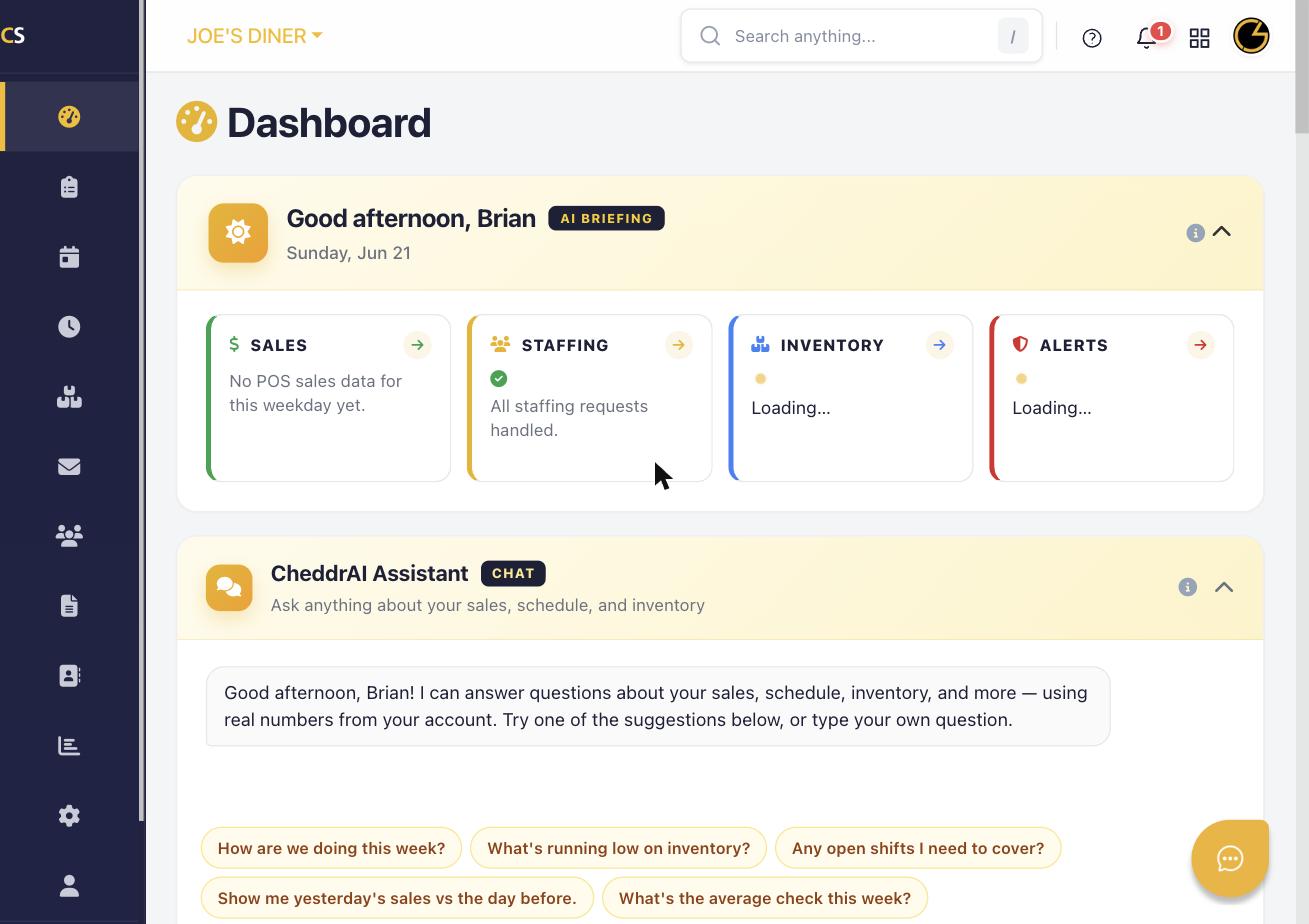
The Dashboard is your command center in CheddrSuite. It gives you a real-time snapshot of your restaurant's performance, staffing status, inventory alerts, and AI-powered insights — all in one place.
Step 1: Log In and Access the Dashboard
Go to app.cheddrsuite.com and log in with your credentials. The Dashboard loads automatically as your home screen.
Step 2: Review Your AI Briefing
At the top of the Dashboard, you'll see the AI Briefing section. This shows a daily summary greeting with your name, date, and an AI-generated overview. Click the sun icon panel to expand or collapse it.
Step 3: Check the Four Key Summary Cards
Below the AI Briefing, four summary cards provide at-a-glance data:
- Sales – Today's POS sales data
- Staffing – Pending shift trade or time-off requests
- Inventory – Low stock alerts and SKUs below par
- Alerts – Critical alerts requiring your attention
Click any card's arrow (→) to navigate directly to that section.
Step 4: Use the CheddrAI Assistant
Scroll down to find the CheddrAI Assistant chat panel. Type any question about your sales, schedule, or inventory — or click one of the suggested prompt buttons to get an instant AI-generated answer.
Step 5: Navigate Using the Left Sidebar
Use the left navigation icons to move between modules: Dashboard, Manager Log, Schedule, Timeclock, Inventory & Menu, Messages, Staff, Documents, Vendors, Reports, Settings, and Profile.
Step 6: Switch Locations (If Applicable)
If you manage multiple locations, click your location name (e.g., "Joe's Diner") in the top-left to switch between locations from the dropdown menu.
Was this article helpful?
That’s Great!
Thank you for your feedback
Sorry! We couldn't be helpful
Thank you for your feedback
Feedback sent
We appreciate your effort and will try to fix the article