Overview
The Daily Manager Log is where you record each service period's key metrics — sales, labor, COGS, guest counts, and notes. Complete it after every shift to keep accurate records and track performance over time.
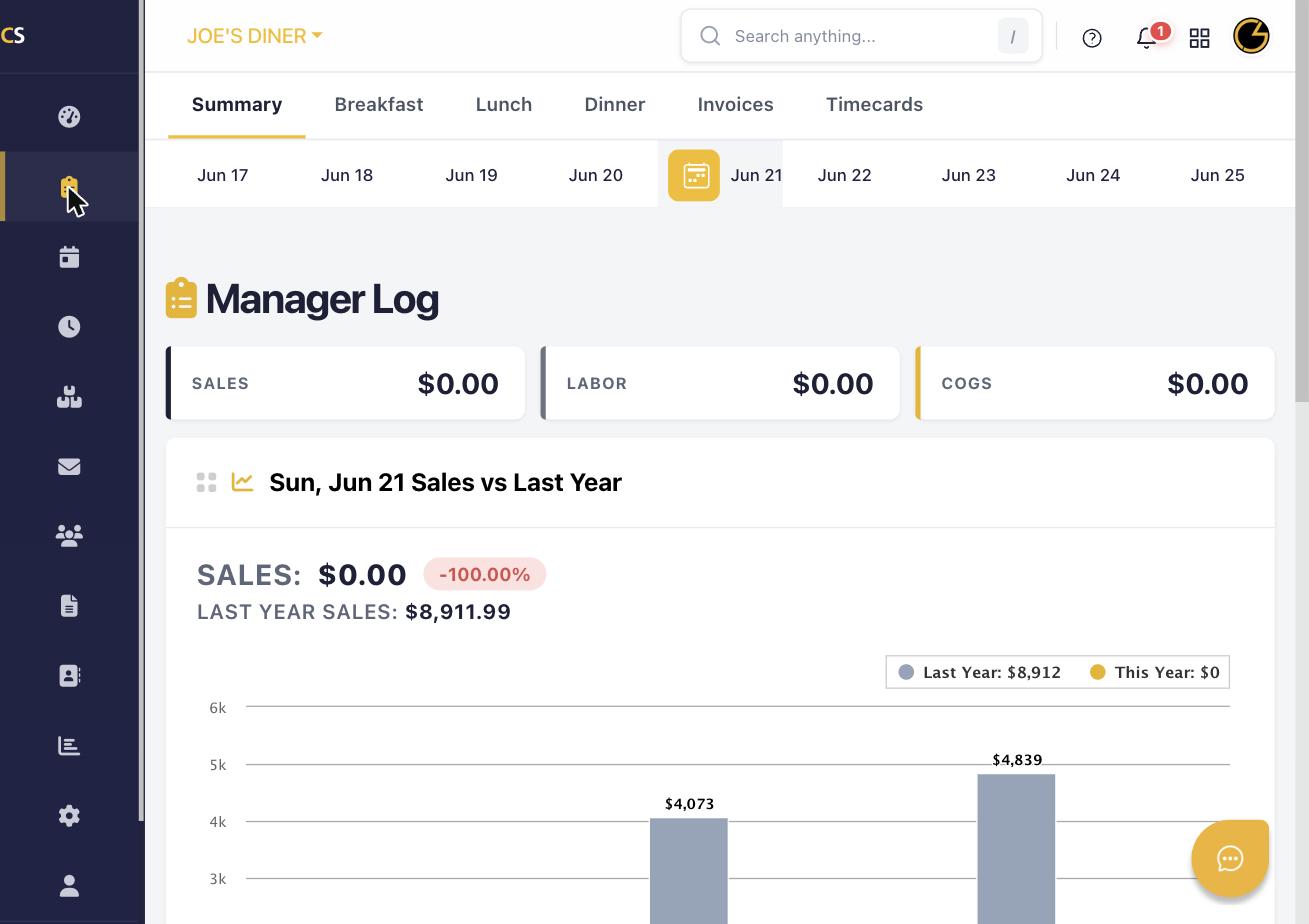
Step 1: Navigate to the Manager Log
Click the clipboard icon in the left sidebar (or press Log in the navigation). Select today's date from the date bar at the top.
Step 2: Select the Service Period
Choose the appropriate service period tab — Breakfast, Lunch, or Dinner — depending on which shift you are completing the log for.
Step 3: Fill In Sales and Labor Data
Enter your actual sales figures, labor hours, and guest count in the fields provided. Data from your POS integration may auto-populate if connected. Review and adjust as needed.
Step 4: Add Notes
Scroll down to the Notes section and type any relevant observations about the shift — staffing issues, equipment problems, special events, or anything managers on future shifts should know.
Step 5: Review the Summary Tab
Click the Summary tab to see an overview of daily totals across all service periods, including Sales, Labor, and COGS at a glance.
Step 6: Save Your Log
Your entries are saved automatically as you type. You can always return to a previous date to review or edit log entries by selecting that date from the date navigation bar.
Was this article helpful?
That’s Great!
Thank you for your feedback
Sorry! We couldn't be helpful
Thank you for your feedback
Feedback sent
We appreciate your effort and will try to fix the article