Overview
Ingredients (SKUs) are the foundation of your inventory system. Setting them up allows CheddrSuite to track stock levels, calculate recipe costs, and generate
reorder alerts.
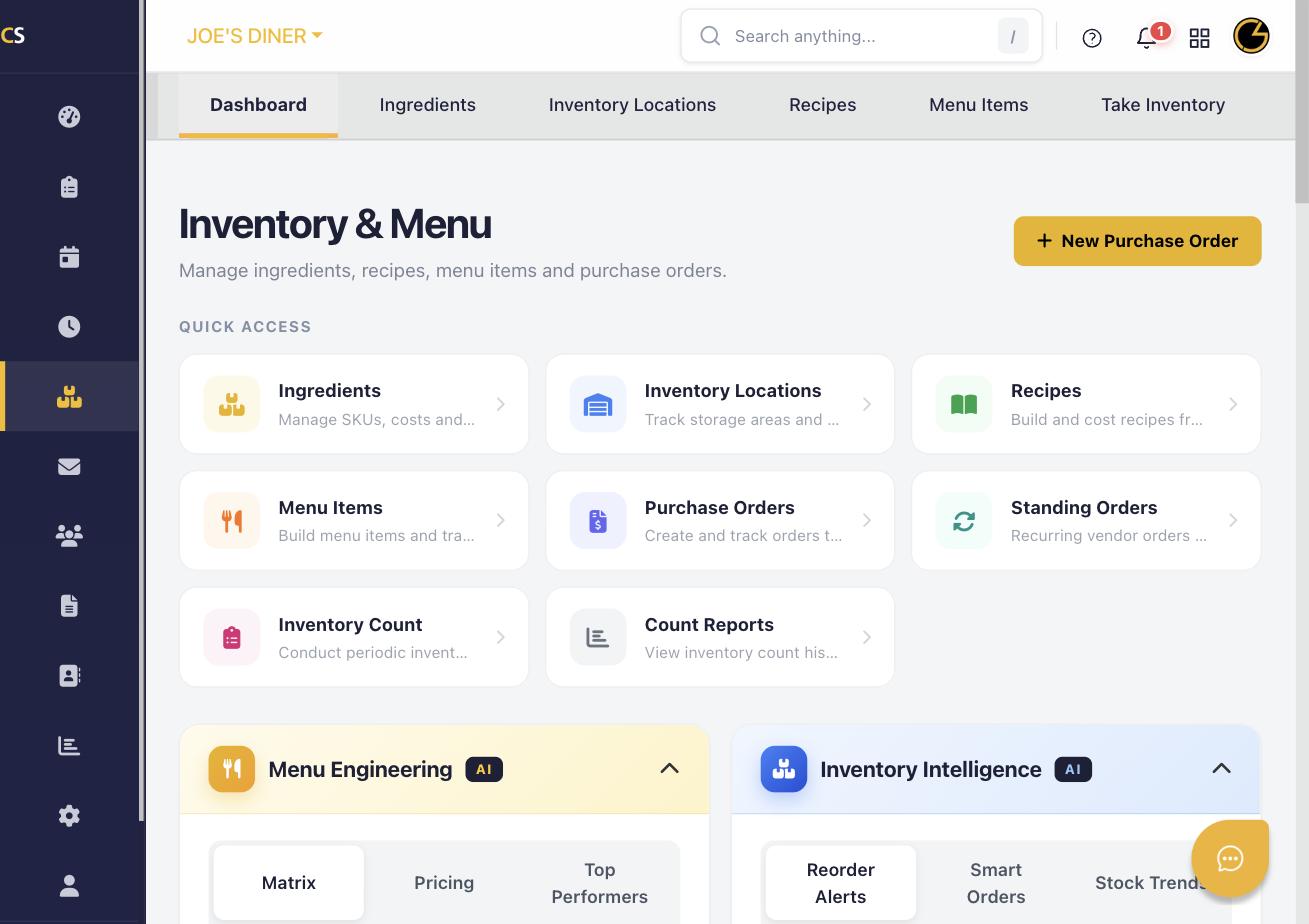
Step 1: Navigate to Ingredients
Click the Inventory & Menu icon in the left sidebar, then select Ingredients from the top navigation tabs.
Step 2: Add a New Ingredient
Click + Add Ingredient. Enter the name, unit of measure (e.g., lbs, oz, each), and assign it to a category (e.g., Proteins, Produce, Dairy).
Step 3: Set Cost and Par Level
Enter the Unit Cost (price per unit) and set a Par Level (minimum stock before reorder alerts are triggered). These drive recipe costing and inventory reports.
Step 4: Assign a Vendor
Select the vendor that supplies this ingredient from your Vendor Directory. This connects the ingredient to purchase orders and standing orders.
Step 5: Set Inventory Location
Assign the ingredient to a storage location (e.g., Walk-In, Dry Storage, Freezer) to organize your inventory count sheets.
Step 6: Save
Click Save to add the ingredient. It will now appear in your ingredient list, be available for recipes, and be counted during inventory counts.
Was this article helpful?
That’s Great!
Thank you for your feedback
Sorry! We couldn't be helpful
Thank you for your feedback
Feedback sent
We appreciate your effort and will try to fix the article