 Overview
The Inventory Count feature lets you conduct periodic stock counts and compare actuals to expected levels. Accurate counts help control waste, theft, and over-ordering.
Step 1: Navigate to Inventory Count
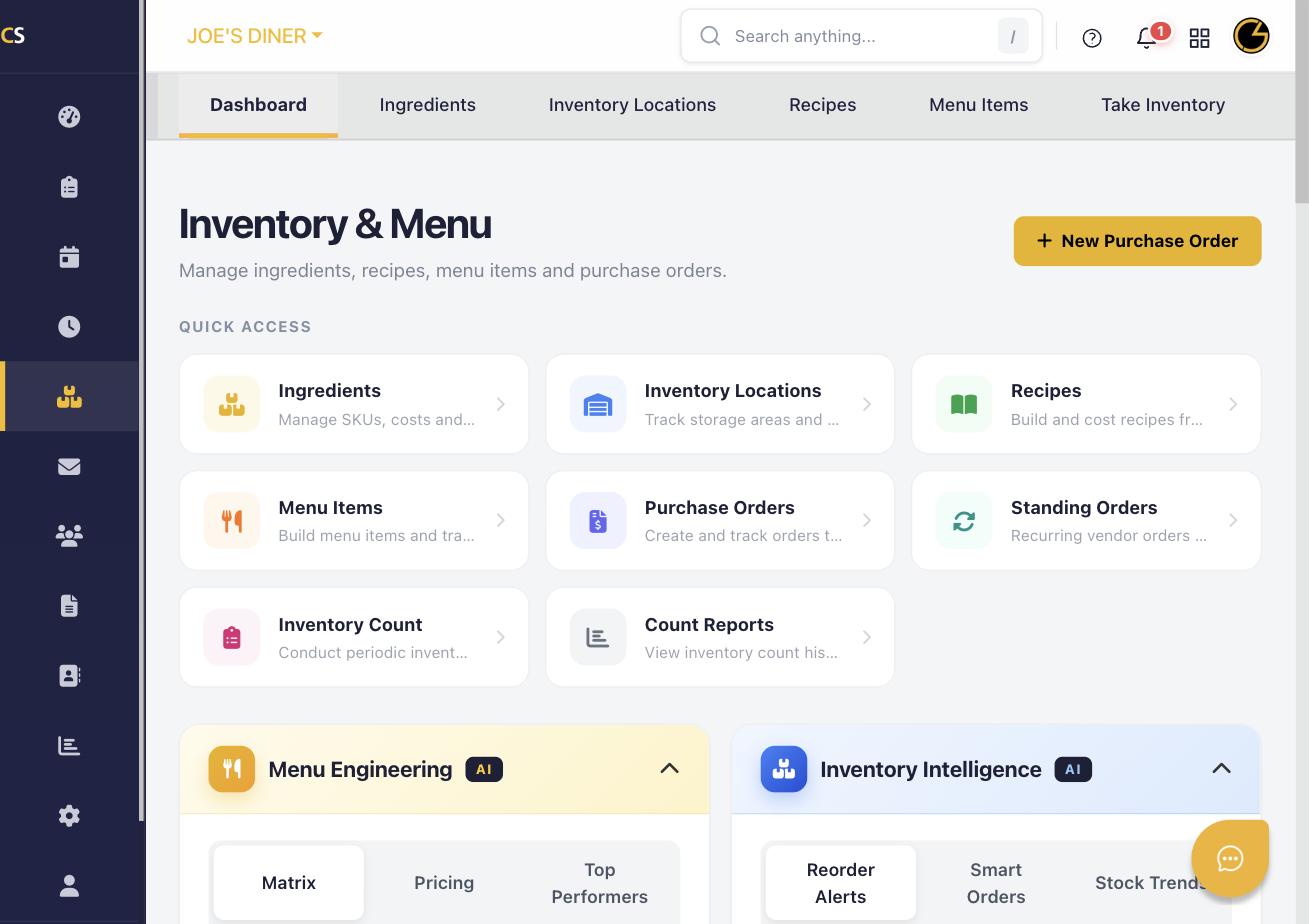
Click Inventory & Menu in the left sidebar, then select Inventory Count (or Take Inventory) from the Quick Access panel.
Step 2: Select Your Count Sheet
Choose the inventory location(s) and categories you want to count. You can count all ingredients or focus on specific storage areas like Walk-In, Dry Storage, or Freezer.
Step 3: Enter Actual Counts
For each ingredient, enter the physical quantity on hand. Use the numeric keypad or type directly into the count fields. The system shows expected quantities based on previous counts and purchases.
Step 4: Review Variances
After entering counts, CheddrSuite highlights any significant variances between expected and actual quantities. Review these to identify waste, theft, or data entry errors.
Step 5: Submit the Count
Click Submit Count when complete. The system records the count and updates your inventory levels. Count history is saved for reporting and trend analysis.
Step 6: View Count Reports
Go to Count Reports to see historical inventory counts, variance reports, and COGS calculations based on your actual inventory usage.
Was this article helpful?
That’s Great!
Thank you for your feedback
Sorry! We couldn't be helpful
Thank you for your feedback
Feedback sent
We appreciate your effort and will try to fix the article