 Overview
Purchase Orders (POs) allow you to track orders placed with vendors, manage delivery of goods, and automatically update inventory when orders are received.
Step 1: Navigate to Purchase Orders
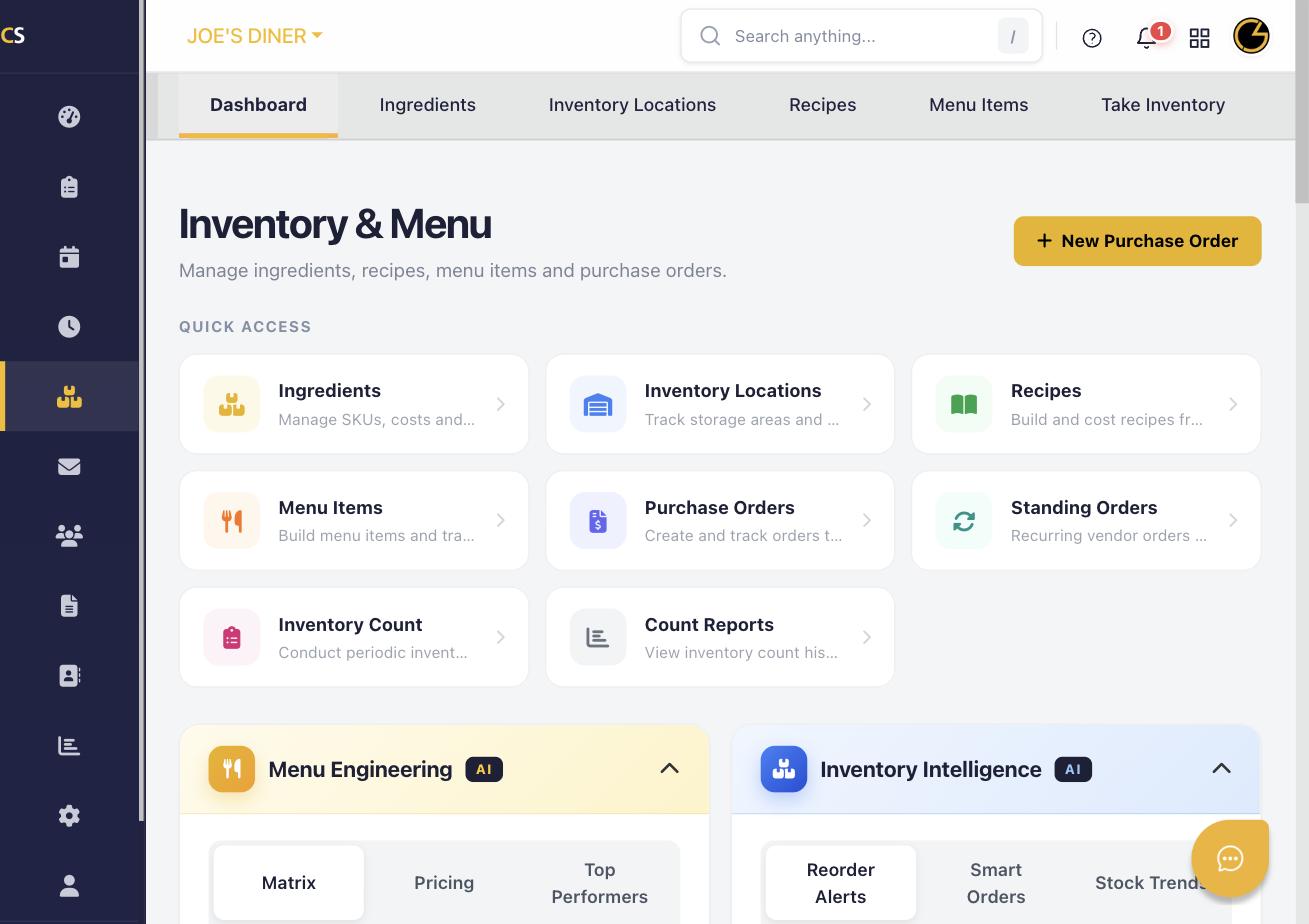
Go to Inventory & Menu and click Purchase Orders in the Quick Access panel, or select the New Purchase Order button on the Inventory dashboard.
Step 2: Select a Vendor
Choose a vendor from your Vendor Directory. The PO will be associated with that vendor and any standing orders or historical prices for that vendor will be available.
Step 3: Add Items to the Order
Search for and add the ingredients or items you want to order. Enter the quantity for each item. The system shows unit costs and calculates the total order value automatically.
Step 4: Set the Delivery Date
Enter the expected delivery date. This helps you plan inventory levels and ensures you have items in stock when needed.
Step 5: Send or Save the PO
Click Save to save the PO as a draft, or Send to email it directly to the vendor from within CheddrSuite. The PO status changes to Ordered.
Step 6: Receive the Order
When items arrive, open the PO and click Receive. Confirm the quantities received. Inventory levels are automatically updated and the PO is marked as Received.
Was this article helpful?
That’s Great!
Thank you for your feedback
Sorry! We couldn't be helpful
Thank you for your feedback
Feedback sent
We appreciate your effort and will try to fix the article