Overview
The Vendor Directory in CheddrSuite stores all your supplier and vendor contacts in one place. Vendors you add here can be linked to purchase orders and standing orders throughout the app.
Step 1: Navigate to Vendors
Click Vendors in the left navigation menu. You will see the Vendor Directory with all existing vendors and supplier contacts.
Step 2: Add a New Vendor
Click Add Vendor. Enter the vendor's company name, contact person, phone number, email address, and any notes about their terms or delivery schedule.
Step 3: Assign a Vendor Group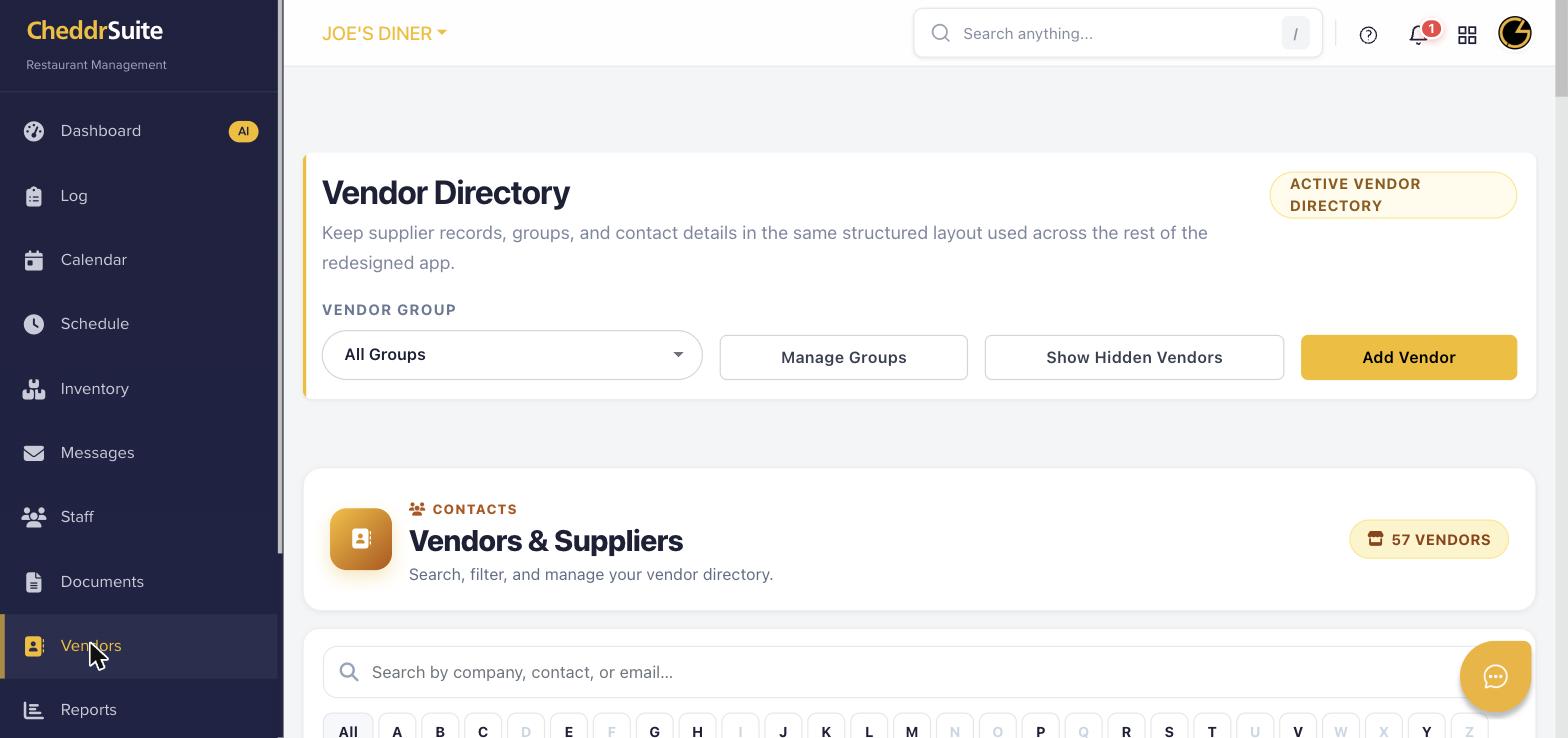
Use the Vendor Group dropdown to organize vendors by category (e.g., Produce, Meat, Beverages). Click Manage Groups to create new groups if needed.
Step 4: Save the Vendor
Click Save to add the vendor to your directory. The vendor will now be available for selection when creating purchase orders and standing orders.
Step 5: Edit or Hide Vendors
To update a vendor's information, click on their name in the directory. To remove a vendor from active view without deleting them, click Show Hidden Vendors and use the hide option.
Was this article helpful?
That’s Great!
Thank you for your feedback
Sorry! We couldn't be helpful
Thank you for your feedback
Feedback sent
We appreciate your effort and will try to fix the article